How to Mount a Laptop Next to Your Monitor
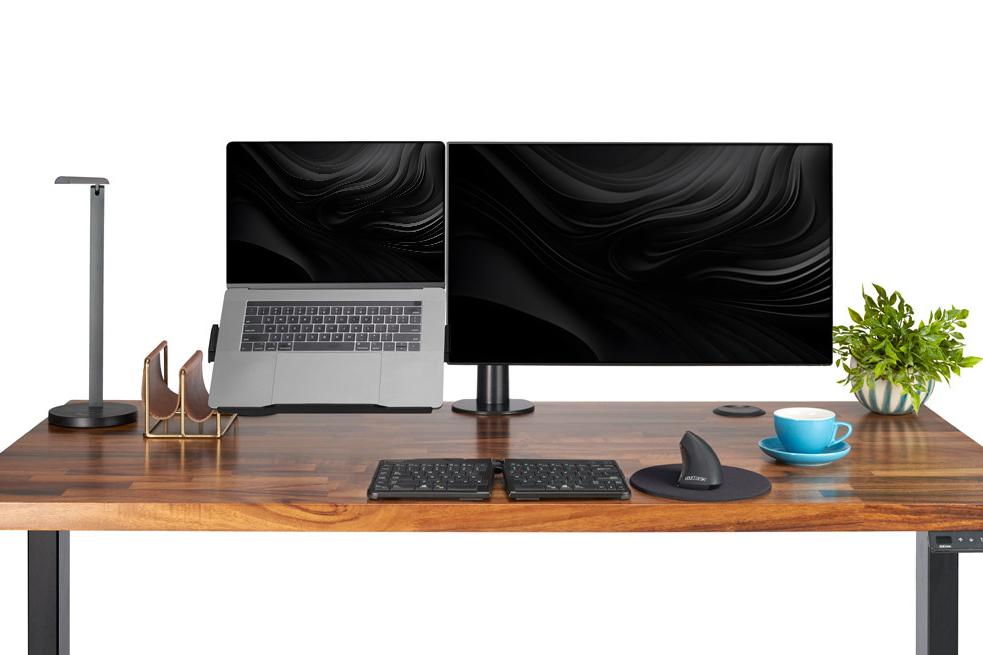
A laptop monitor arm lifts your laptop off the desk and turns the laptop screen into a second display. The Laptop Mount by UPLIFT Desk attaches to a compatible monitor arm with a 75mm VESA pattern, raising the laptop screen to eye level beside your monitor.
Why mount your laptop?
Mounting your laptop raises the screen closer to eye level to reduce neck strain, clears space on your desk, and improves airflow around the laptop.
Laptop mount vs. laptop stand: what's the difference?
Freestanding laptop stands
A laptop stand sits directly on your desk and holds the laptop at a raised angle. Some models are lightweight and portable, while others offer adjustable height. A stand raises the screen closer to eye level, but the laptop still occupies desk space.
Laptop mounts
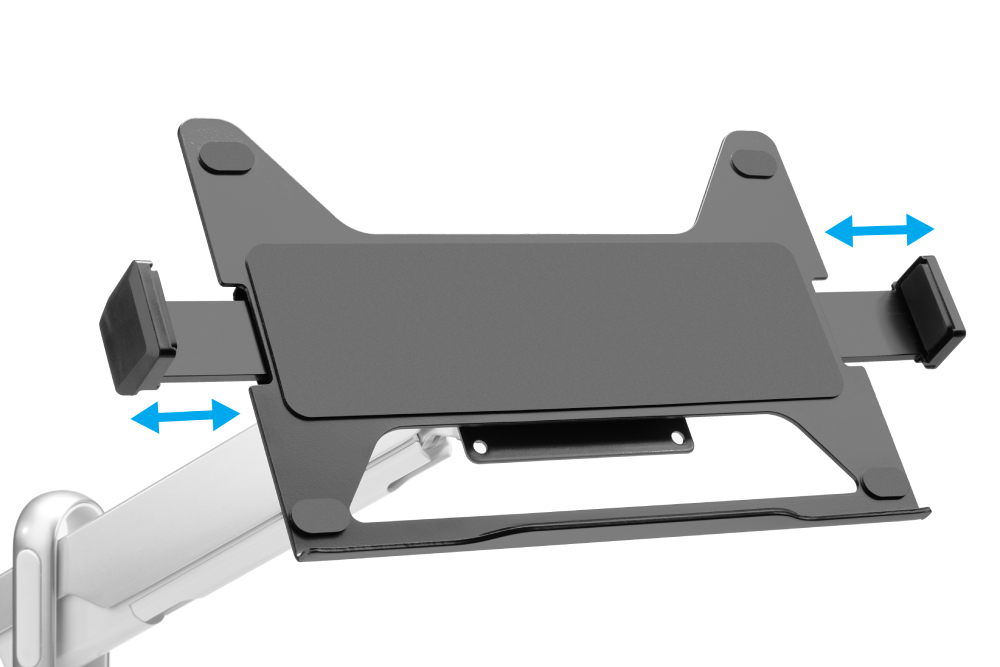
A laptop mount attaches to an adjustable monitor arm. The arm clamps or bolts to the desk, letting you swivel, tilt, and raise the laptop screen. The mount holds the laptop securely on the arm and keeps the laptop off the desktop.
A stand suits portable setups and occasional use, while a mount suits a permanent workstation where the laptop works as a second screen.
How a laptop mount attaches to a monitor arm
A laptop mount connects to a monitor arm through a standardized VESA mounting pattern. Compatibility comes down to two things: whether the arm supports that pattern, and whether your laptop fits the mount securely. Once the mount is on the arm, you can adjust the laptop's height, tilt, depth, and side-to-side position the same way you would a monitor.
What 75mm VESA means
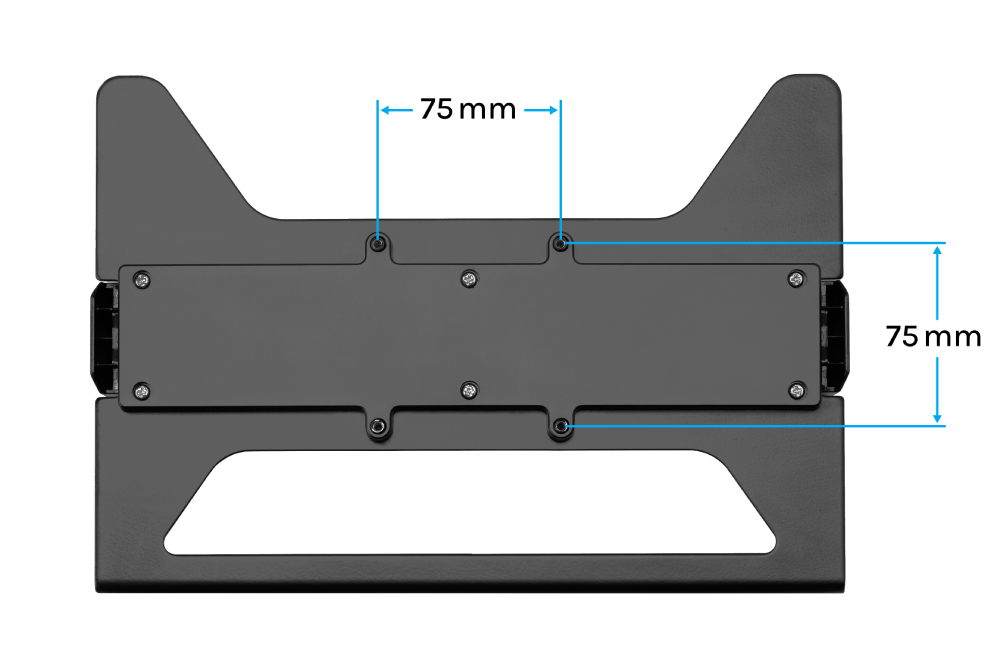
VESA refers to the spacing of the screw holes used to attach a monitor or mount to an arm. The Laptop Mount by UPLIFT Desk uses a 75 x 75mm pattern, meaning the four holes form a square, spaced 75mm apart horizontally and vertically. Many arms support both 75mm and 100mm VESA patterns, but confirm a 75mm option in the arm's specifications before ordering.
Will my laptop fit?
The mount fits laptops between 11.3" and 18.3" wide and up to 1" thick (excluding the screen). Measure the width of the laptop body. Laptop sizes such as 14" or 16" describe the screen measured diagonally, which differs from the body width. If the front edge is especially thin, tapered, or curved, check that the laptop sits securely against the mount's bottom lip. The mount holds laptops up to 19.8 lbs (9 kg) and weighs 2.4 lbs, so your monitor arm needs to support your laptop's weight plus 2.4 lbs.
How to set up a laptop and monitor together
In a dual-screen setup, the monitor arm determines how well your laptop lines up with your monitor. With both screens positioned correctly, you can glance between them without turning your shoulders or craning your neck.
Line up the laptop screen with your monitor
Place the screen you use most directly in front of you. Put the laptop close beside it and adjust the arms so the tops of the screens sit at a similar height. Screen sizes differ, so exact alignment isn't always possible; the aim is to avoid repeatedly looking far up, down, or to the side. Arms with independent height adjustment make this easier because moving one screen won't force you to move the other.
If you take video calls on the laptop, keep its webcam close to the height of your eyes so the camera faces you straight on.
Which monitor arms work (and which don't)
UPLIFT Desk recommends a separate single monitor arm or a dual monitor arm with independent height adjustment. Compatible options include the Range Single Monitor Arm, Crestview Single Monitor Arm, Range-X Dual Monitor Arm, Crestview Dual Monitor Arm, and Domain RGB Single Monitor Arm.
The Crestview Align and dual Moontower arms raise and lower their screens together, so a mounted laptop can't be adjusted to line up with the monitor beside it. For that reason, neither is recommended or offered as an arm option for the Laptop Mount.
Zilker arms are a compatible option with one condition: your laptop screen needs to open to at least 150 degrees to reach an ergonomic viewing angle. A hinge that stops short of 150 degrees leaves the mounted screen leaning back at an awkward angle, so check how far your laptop opens before choosing a Zilker arm.
Single arm vs. dual arm setups
A single arm works well if the laptop is your only screen. With a laptop and an external monitor, you can use two separate single arms or one compatible dual arm. Separate arms let you place each screen anywhere along the desk, while a dual arm with independent height adjustment keeps both screens on one desk mount.
How to install a laptop mount on a monitor arm
Once you've chosen an arm, installation takes a few steps:
- Check your desk. Confirm the desktop fits the arm's clamp or grommet range, and avoid mounting to glass, hollow-core, or damaged desk edges.
- Attach the mount to the arm. Fasten the arm's VESA plate to the back of the mount with the four included M4 screws and washers, with the bottom of the plate facing the mount's support lip. Then lock the plate onto the arm following your monitor arm's instructions.
- Test the arm before loading it. Move the arm through its full height, tilt, and swivel range, and make sure the laptop lid won't hit a wall, shelf, or the neighboring screen.
- Seat the laptop. Rest the bottom edge of the laptop on the mount's lip, pull the spring-loaded side grips outward until the laptop sits flush against the mount, then gently release the grips to clamp the laptop in place.
- Route the cables. Leave enough slack in the charging and display cables for the arm to move without pulling on the laptop's ports.
If the arm drifts after the laptop is loaded, adjust its tension so the screen holds its position. For product-specific instructions, see the Laptop Mount Instructions.
How to position your mounted laptop ergonomically
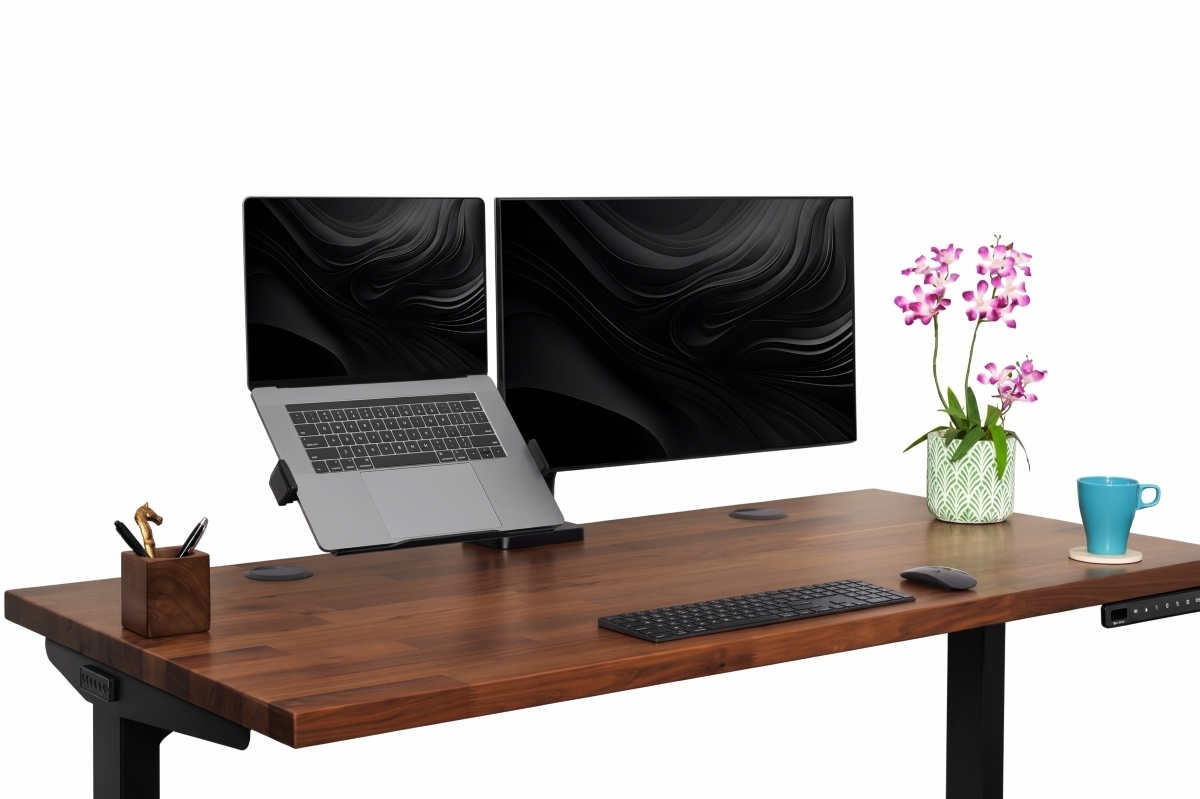
When you raise a laptop on a monitor arm, adjust the mount so the top of the screen sits at or just below eye level and approximately fingertip distance away. Set the tilt so you can read comfortably without leaning your head forward, and angle the screen to reduce glare from nearby lights or windows.
A laptop's screen and keyboard are built as one piece, so raising the screen to eye level lifts the keyboard out of comfortable reach. Once your laptop is mounted, keep a separate keyboard and mouse on the desk, where you can type with your elbows bent at about 90 degrees and your wrists straight.
A docking station makes the daily setup faster: with a single cable, the laptop connects to your keyboard, mouse, and monitor each time you sit down.
On a standing desk, a clamp- or grommet-mounted arm rises and lowers with the desktop, so the laptop moves with you. Your eye level relative to the desk can shift slightly between sitting and standing, so recheck the screen height the first time you switch positions.
Laptop mount specs to check before you buy
| Specification | Laptop Mount by UPLIFT Desk |
|---|---|
| VESA pattern | 75 x 75mm |
| Laptop width | 11.3" to 18.3" |
| Maximum laptop thickness | 1", excluding the screen |
| Weight capacity | 19.8 lbs (9 kg) |
| Mount weight | 2.4 lbs |
| Materials | 3mm carbon steel frame, ABS plastic housing, silicone rubber pads |
| Features | Spring-loaded side grips, bottom support lip, ventilation cutouts |
Shop the Laptop Mount by UPLIFT Desk and add a compatible monitor arm to your order. Not sure which arm fits your laptop? Contact our team for help matching one to your workspace before you order.